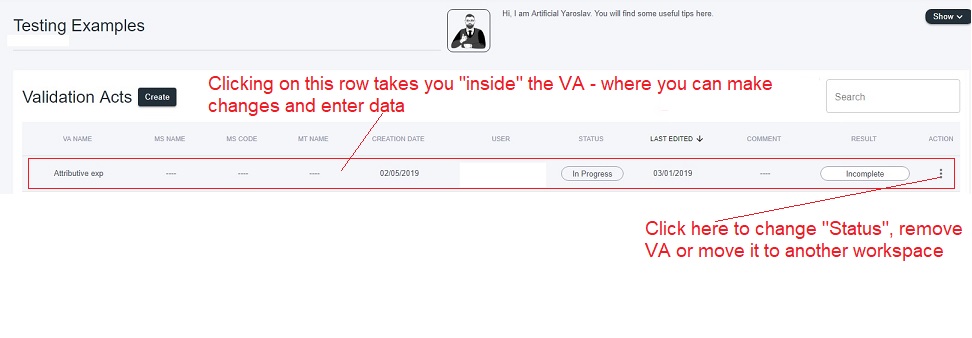
The “main page” of the Yarvyn app is some Workspace, where you can see the Validation Acts it contains. You can create a new Validation Act by clicking on the “Create” button.
Result
Result of a VA is based on the worst result of QMP and/or QMS for all characteristics in the Measurement Task.
Possible results are “Not Suitable”, “Suitable”, “Conditionally Suitable” and “Incomplete”. The first two should be self-explanatory and “Incomplete” indicates that either %QMP or %QMS is not computed. “Conditionally Suitable” indicates that either
- Trend Compensation feature was used in Experiment Type 1
- ndc < 5
- %QMS > 15% and %QMP < 30%.
Read more: What Is Trend Compensation?
If you have user or manager collaborator role in the workspace, you can change the Result by clicking on a particular Validation Act row (as described in the screenshot above) and going to the last step of the VA.
Status
- In Progress - Work on the VA is in progress.
- Completed - Work on the VA is completed.
- Pending - This status is changed manually by clicking on the three vertical dots in the “Action” column. Usually it indicates waiting for something.
- Waiting For Approval - this status is used in approval hierarchy of Validation Acts. VA with this status can be moved to a workspace where the user has approval requests collaborator role. (Read here about sharing WS with other users.)
Action
Besides Removing the VA or changing its status, you can also move it to another Workspace -- where you have the User privileges.
Comments
0 comments
Please sign in to leave a comment.