Only Organization admin can edit details about a workspace belonging to that Organization.
Click on “Organization Settings” in the left sidebar menu (1) and select the “Workspace” tab at the top (2). Here you can see and overview of all Workspaces in your Organization. Find the Workspace you want to edit / delete and click on the three vertical dots in the right corner.
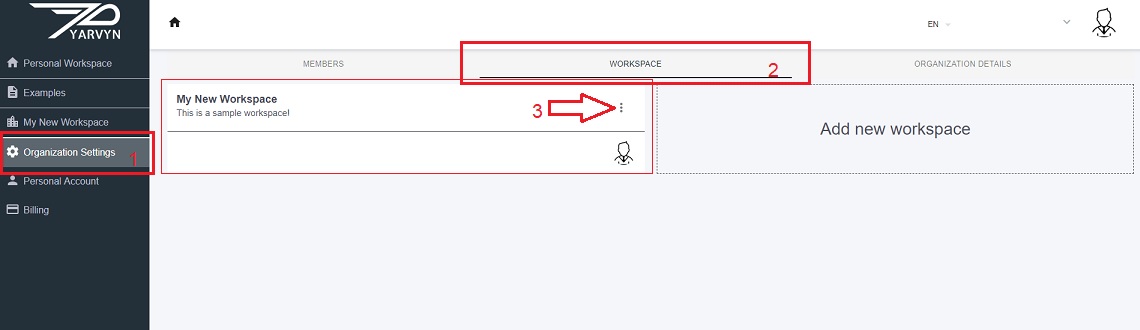
By clicking on the three dots, a dialogue should pop-up: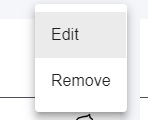
Clicking on "Remove" deletes the workspace.
Clicking on "Edit" takes you to a dialogue like this one:
Changing Type of Workspace
Turn on the “Organization Public” option or switch it off to set “Organization” option. If the "Organization Public" switch is on - the Workspace will be available to all members of your organization by default without the need to specifically add them. "Organization" Workspace can be shared externally and all collaborators have to be added here, manually.
Add collaborator
By clicking on the three vertical dots on the right of each line that has a particular user’s details, you can either Remove them from the Workspace or change their collaborator role.
You can also add a new collaborator and assign them a role. If you’ve chosen the type of Workspace to be “Organization” (i.e. the “Organization Public” switch is off), you can add collaborators from a different organization - they only need to have a Yarvyn account and their Email should appear if you start typing.
To save any changes, don’t forget to click on the “Save” button. To return without saving, simple click on the “Close” button.
Comments
0 comments
Please sign in to leave a comment.